How to connect GitHub and hand work to Copilot
A good bug report saves a developer from asking the same first questions: where did it happen, what did the browser see, and what changed on the page? With Vynix, you can capture that context from the site, send it to GitHub, and assign the issue to GitHub Copilot when your repo supports Copilot coding agent.

Why GitHub connection matters
Website bugs often start as vague messages in Slack or project tools. Someone says the pricing page button is broken, a form does not submit, or a menu looks wrong on mobile. By the time a developer reads it, the report is missing the page state, the selected element, console errors, failed requests, and the exact thing the reporter clicked.
Vynix is built for that gap. You drop its lightweight widget on a site, click the part that is wrong, and capture the element, a screenshot, console output, network context, and an AI diagnosis of the likely root cause. Connecting GitHub turns that capture into work your engineering team can track.
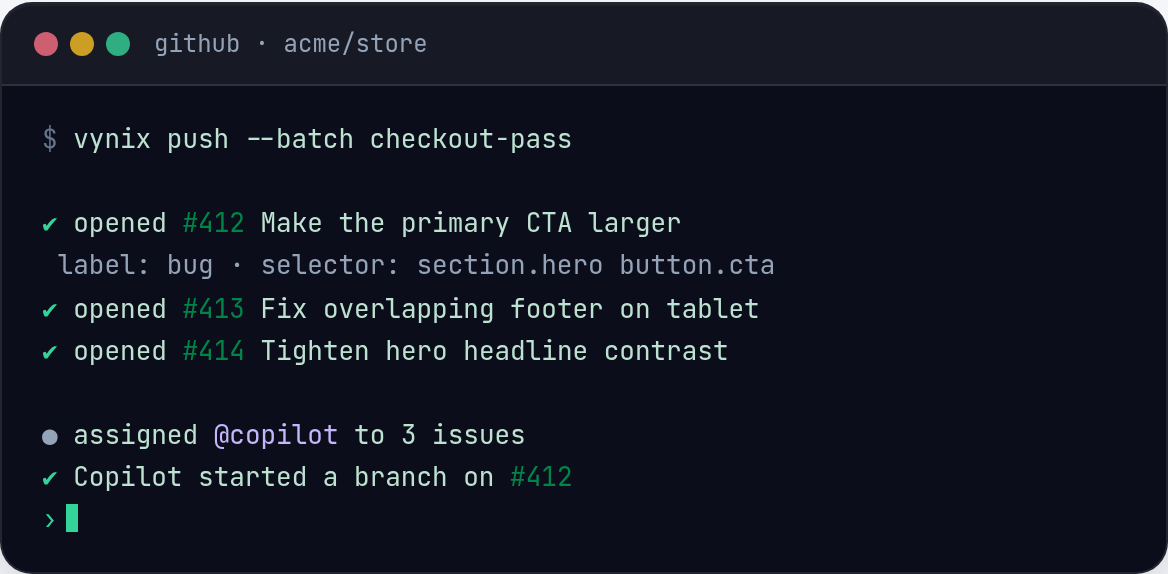
The GitHub connection is useful because it keeps the issue close to the code. Instead of copying details from a browser into a ticket by hand, you can open a GitHub issue from Vynix with the relevant context already included. If your repository has GitHub Copilot coding agent enabled, the issue can also be assigned so Copilot has a clear starting point.
Before you connect GitHub
A clean setup avoids permission confusion later. The person connecting GitHub should have access to the organization and repositories where issues will be created. If your company restricts GitHub apps or third-party integrations, ask an organization owner to approve the connection first.
You should also decide where website annotations should land. Some teams use one repository per product. Others keep site issues in a frontend repository, even when the root cause might be an API problem. The important part is consistency, because Copilot and human reviewers both benefit from issues being filed near the code that will likely change.
- Confirm that Issues are enabled in the target GitHub repository.
- Check that your GitHub account has permission to create issues in that repository.
- If you plan to assign issues to Copilot, confirm that GitHub Copilot coding agent is available and enabled for the repository.
- Decide whether Vynix reports should use labels such as bug, frontend, design, or needs-triage.
- If your team uses issue templates, make sure the Vynix output still leaves room for captured context.
Connect Vynix to GitHub
In Vynix, connect GitHub from the integration or workspace settings area. The flow should take you through GitHub authorization, where you choose the account or organization and approve the requested access. Use the least access that still lets Vynix create issues in the repositories your team needs.
After authorization, pick the repository you want Vynix to send issues to. If your workspace covers multiple sites or environments, map each site to the right repository where possible. For example, a marketing website annotation might go to a web repo, while an app dashboard issue might go to the product frontend repo.
Once the connection is in place, test it with a low-risk annotation. Open a staging page or a harmless production page, click an element, create an issue, and confirm that the issue appears in GitHub with the screenshot and captured browser context. This quick test catches common problems such as missing repository access, disabled issues, or a connection made with the wrong GitHub account.
Capture a website problem with enough context
The quality of the GitHub issue depends on what you capture. In Vynix, start from the page where the problem is visible. Click the widget, select the broken or confusing element, and add a short note that explains what you expected and what actually happened.
For example, do not write only, "CTA broken." A better note is, "Clicking the Start trial button on /pricing does nothing. I expected the signup modal to open. This happens after selecting the annual plan." That gives both Copilot and a human reviewer a clear behavior to reproduce.
Vynix adds the technical evidence that is easy to miss when filing issues by hand. The selected element helps identify the relevant DOM node. The screenshot shows the visual state. Console and network context can point to JavaScript exceptions, missing assets, failing API calls, or blocked requests. The AI diagnosis is not a final verdict, but it can narrow the first search area.
- Click the exact element involved, not just a nearby container.
- Include the expected behavior in your note.
- Include the actual behavior in plain words.
- Mention any steps that matter, such as selected plan, logged-in state, browser size, or form values.
- Do not paste secrets, private customer data, tokens, or credentials into the note.
Create a GitHub issue that Copilot can act on
When you open the issue from Vynix, review the generated title and body before sending it to GitHub. A good issue title describes the broken behavior and location. For example, "Pricing page Start trial button does not open signup modal" is more useful than "Button bug."
The issue body should give Copilot the same information you would give a developer who has never seen the bug. Vynix helps by including the captured element, screenshot, console and network context, and likely root cause. Your job is to make sure the human-facing part is clear and specific.
If you are assigning the issue to Copilot, be especially direct about the desired end state. Copilot works best when the task is framed as a code change with acceptance criteria, not just a complaint. You can still let Copilot investigate, but the issue should say how the fix will be judged.
- Use a title with page, element, and symptom.
- Keep reproduction steps short and ordered.
- State the expected result and the actual result.
- Leave Vynix technical context in the issue so Copilot can inspect clues.
- Add acceptance criteria, such as "Clicking the button opens the signup modal on desktop and mobile."
- Assign the issue to Copilot only when the task is suitable for an automated coding agent and your repo has that support enabled.
Review Copilot's work like any pull request
Handing an issue to Copilot does not remove the need for review. Treat the result like a pull request from any contributor. Read the diff, run the app, check the affected page, and make sure the change does not fix one state while breaking another.
Vynix context can help during review too. Compare the pull request against the original screenshot and captured behavior. If the issue was caused by a failed network call, confirm that the fix addresses the request path, error handling, or API contract rather than only hiding the symptom. If the issue was visual, check responsive states and any shared components that use the same class or component.
A practical workflow is to use Vynix for capture, GitHub for tracking, Copilot for a first implementation when appropriate, and human review for judgment. That keeps the process fast without pretending that browser context and AI output replace engineering ownership.
Common mistakes to avoid
The most common mistake is sending too little product context. Browser logs can show what failed, but they do not always explain what should happen instead. A missing route, a disabled button, and a blocked request can look similar until someone states the expected behavior.
Another mistake is assigning every issue to Copilot. Some work needs product decisions, design review, backend access, or security judgment before code should be written. Copilot is a better fit for scoped fixes where the expected behavior is clear and the repository contains enough code context.
Finally, avoid turning Vynix captures into noisy issues. If several annotations describe the same root problem, combine them or link them. A clean issue queue helps Copilot, maintainers, and product owners understand what is actually ready to build.
- Do not file duplicate issues for the same visible bug unless the contexts are meaningfully different.
- Do not assign vague tasks such as "fix layout" without acceptance criteria.
- Do not remove console or network context from the issue just to make it shorter.
- Do not skip review because Copilot opened the pull request.
- Do not include sensitive user data in screenshots or notes.
- Connect GitHub so Vynix captures can become trackable issues near the code.
- A useful issue includes the selected element, screenshot, console and network context, expected behavior, and acceptance criteria.
- Copilot can help with scoped fixes, but its pull requests still need normal engineering review.
Frequently asked questions
Can Vynix automatically fix the bug after I connect GitHub?
No. Vynix captures website context and can help create a GitHub issue or ready-to-build prompt. If your repository supports GitHub Copilot coding agent, you can assign the issue to Copilot, but the resulting code still needs review.
What should I include in a Vynix note before creating the issue?
Include what you clicked, what you expected, what actually happened, and any steps that matter. Vynix adds the selected element, screenshot, console context, network context, and an AI diagnosis, but your expected behavior is still important.
When should I assign an issue to Copilot instead of a developer?
Assign it to Copilot when the task is clear, scoped, and suitable for a code change in a repository where Copilot coding agent is enabled. Use a developer first when the issue needs product direction, design judgment, security review, or access outside the repo.
Install the widget with one script tag, point at a bug, and hand the fix to your coding agent.
Get started free