How Vynix works, from a click to a fix
Bug reports usually lose the details developers need most: the exact element, the browser state, and what happened around the failure. Vynix keeps that context attached to the report, so a single click on a broken part of a site can become a clear fix task.

The problem Vynix is built to remove
Most website feedback starts with a vague message. A tester writes that the checkout button does not work, a designer says the hero text wraps badly, or a customer support teammate reports that a form is stuck. The developer then has to ask follow-up questions: which browser, which page, which button, what did the console say, did the request fail, can you send a screenshot?
That back-and-forth is expensive because it happens before any real debugging begins. The person who saw the issue may not know how to open DevTools. The developer may not be able to reproduce the same state. By the time the bug lands in GitHub, the useful facts are often scattered across chat messages, screenshots, and guesses.
Vynix changes the shape of the report. Instead of asking people to describe a web issue from memory, it lets them point at the broken thing. The tool captures the surrounding technical context at the moment of the click, then packages it into something a developer or coding agent can act on.
Step 1: Add the lightweight widget
Vynix starts with a lightweight widget added to the site you want to annotate. The point is not to replace your issue tracker or your development workflow. The widget sits on the page so feedback can be created where the bug is visible, not later in a separate tool after context has been lost.
This is useful on staging environments, QA builds, internal tools, and live pages where approved teams need to report precise issues. A product manager reviewing a release candidate can mark a broken dropdown. A designer can point at a spacing problem. A QA engineer can flag a failed request without manually copying console output.
The widget matters because the website itself becomes the reporting surface. The reporter does not need to know the component name, route file, CSS class, or API endpoint. Vynix collects the clues that make those details easier to find.
- Install the widget on the site or environment where feedback should be collected.
- Open the page that contains the issue.
- Use the widget to begin an annotation instead of writing a report from scratch.
- Click the exact element that appears wrong or behaves incorrectly.
Step 2: Click the broken element
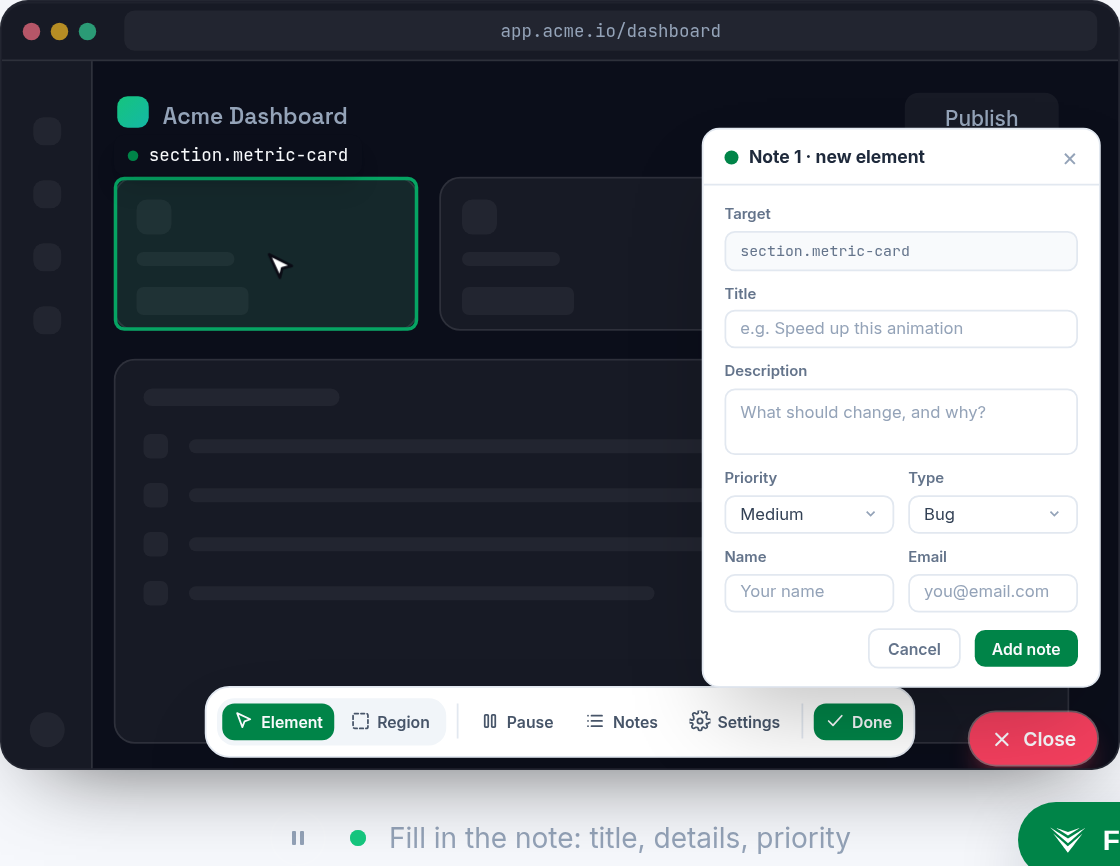
The click is the main event. When someone clicks the part of the page that is wrong, Vynix treats that element as the center of the report. That is a big improvement over a screenshot alone. A screenshot can show what a user saw, but it cannot tell a developer which DOM node was clicked, what attributes it had, or what nearby structure may be relevant.
For example, a report that says the price filter does not open is not enough. Is the issue on the filter label, the button, the icon inside the button, or the drawer that should appear after the click? With element capture, the report can preserve the target that the reporter meant. That helps reduce guesswork when the issue is routed to a developer or agent.
Vynix also captures a screenshot, which is still important. Visual proof helps explain layout, state, and timing. If a modal is covering a button, if text is clipped, or if an empty state appears where a list should be, the screenshot gives the developer a quick human-readable view of the problem.
Step 3: Preserve console and network context
A broken website often leaves evidence in the browser. The console may show a JavaScript error. The network panel may show a failed request, a bad status code, or an unexpected response pattern. These details are exactly what developers ask for, but they are also the details most reporters forget to capture.
Vynix collects console and network context around the report so the technical trail stays connected to the clicked element and screenshot. This does not mean every issue is instantly obvious. It does mean the first pass starts with better evidence.
Consider a page where clicking Save does nothing. Without context, the bug sounds like a front-end event problem. With network context, the report might show that the request was sent but failed. With console context, it might show an exception after a response came back. Those are different fixes, and they may belong in different parts of the codebase.
Good context also helps when the bug cannot be reproduced right away. If a request failed only for one account state, or an error appeared only after a particular sequence, the saved context gives the developer something concrete to inspect instead of starting from a blank page.
- Console context can point to runtime errors, warnings, or failed assumptions in client-side code.
- Network context can show failed calls or suspicious request behavior around the reported action.
- The screenshot shows the visible state that matched the technical evidence.
- The captured element ties the evidence to the part of the UI the reporter selected.
Step 4: Use the AI diagnosis as a starting point
After Vynix captures the element, screenshot, console, and network context, it adds an AI diagnosis of the likely root cause. The wording matters: likely root cause, not guaranteed answer. The diagnosis is meant to organize the evidence and suggest where to look first.
This is useful because raw context can still take time to read. A developer may receive a report with a screenshot, a selected button, a console error, and a failed request. The AI diagnosis can summarize the pattern, such as a missing handler, a client-side exception after a state update, or an API failure connected to the action.
A good diagnosis shortens the first few minutes of triage. It can tell the developer which clue seems most important and what kind of fix may be needed. The developer still owns the final decision, but the report begins with a hypothesis instead of a pile of disconnected artifacts.
The same is true when assigning work to a coding agent. Agents perform better when the task includes the page state, the target element, the observed behavior, and the relevant logs. Vynix packages those ingredients so the agent has more than a one-line instruction.
Step 5: Turn the report into a buildable task
A report is only useful if it reaches the place where work happens. From Vynix, you can copy a ready-to-build prompt or open a GitHub issue. That makes the handoff practical. Instead of rewriting the same context into an issue description, the captured details can move into the developer workflow with less manual cleanup.
The ready-to-build prompt is helpful when you want to ask a coding agent to inspect or implement a fix. A prompt that says fix the broken checkout button is weak. A prompt that includes the clicked element, screenshot context, console and network evidence, and an AI diagnosis gives the agent a much better starting point.
Opening a GitHub issue is useful when the team tracks fixes there. The issue can be assigned to a coding agent, so the captured report becomes part of the normal review and implementation path. Developers can still edit, label, and prioritize the issue according to their own process.
This step is where Vynix connects feedback to action. The goal is not just to collect annotations. The goal is to reduce the distance between seeing a problem and creating a clear, technical task that can be fixed.
- Copy a prompt when the next step is to ask an agent or developer to work from the captured context.
- Open a GitHub issue when the bug should enter your team's normal tracking flow.
- Assign the issue to a coding agent when you want the agent to start from the Vynix-generated task context.
- Keep the original evidence attached so reviewers can understand why the fix is needed.
What this changes for development teams
The biggest change is that feedback becomes more precise at the source. Non-developers can report what they see without translating it into developer language. Developers receive reports with the evidence they usually have to request later. Coding agents get tasks that include enough context to be useful.
This can improve several common workflows. During QA, testers can file issues as they move through a build. During design review, visual problems can be tied to the actual element on the page. During support escalation, a reproduced customer issue can be captured with the browser context still present. During agent-assisted development, the prompt can start with a real observation instead of a broad instruction.
Vynix does not remove the need for judgment. Someone still needs to decide whether a report is valid, how urgent it is, and what the final fix should be. What it removes is much of the avoidable confusion at the beginning: missing screenshots, unclear selectors, copied logs without context, and bug reports that require three follow-up messages before anyone can start.
From a click to a fix, the value is in keeping the chain intact. The clicked element explains what the reporter meant. The screenshot explains what they saw. The console and network context explain what the browser knew. The AI diagnosis turns those clues into a starting hypothesis. The prompt or GitHub issue turns the whole package into work that can be built.
- Vynix turns a clicked website element into a report with screenshot, console, network, and AI diagnosis context.
- The tool reduces the follow-up work normally needed to understand vague website bug reports.
- Reports can become ready-to-build prompts or GitHub issues that can be assigned to a coding agent.
Frequently asked questions
Does Vynix replace GitHub issues?
No. Vynix can open a GitHub issue from a captured report, but it is not described as a replacement for your issue tracker. It helps create a better issue by attaching element, screenshot, console, network, and diagnosis context.
Is the AI diagnosis always correct?
No diagnosis should be treated as automatically correct. Vynix provides an AI diagnosis of the likely root cause, which is best used as a starting point for triage, code inspection, or agent work.
Who should use Vynix on a team?
Vynix is useful for anyone who finds website issues and needs to pass them to developers, including QA testers, product managers, designers, support engineers, developers, and teams using coding agents.
Install the widget with one script tag, point at a bug, and hand the fix to your coding agent.
Get started free