Point and click feedback on any web page
Most web feedback loses the detail developers need. Vynix turns a click on a broken part of a page into a useful work item, with the visual proof, browser context, and likely cause captured together.

Why screenshots and vague notes slow teams down
A typical bug report says something like, the button is broken on checkout. That may be true, but it leaves the developer with a list of questions. Which button? Which browser? Was the user logged in? Did an API call fail? Was there a console error? Did the issue happen after a certain interaction?
The missing context creates back and forth. A product manager records a video. A QA tester adds a screenshot. A developer asks for the network tab. Someone tries to reproduce it in staging, but the data is different. By the time the ticket is ready, the original problem may have been seen by several people, each adding a little more detail in a different place.
Vynix is built around a simpler idea: the person who sees the issue should be able to click on the exact part of the page that is wrong. The tool should collect the context at that moment, because that is when the browser knows the most about what happened.
What Vynix captures when someone clicks a problem
Vynix runs as a lightweight widget on the site. When someone spots a layout bug, a dead button, a wrong label, or a loading error, they can point to the affected element and create feedback from the page itself. The selected element matters because it anchors the report to a real part of the DOM instead of a loose description.
The capture includes the page screenshot, the selected element, console context, and network context. Vynix also adds an AI diagnosis of the likely root cause. That diagnosis is not a replacement for engineering judgment, but it gives the developer a useful starting point. For example, it can help separate a styling issue from a failed request or a client-side exception.
- Element context: the report is tied to the UI component or DOM node that was clicked.
- Screenshot: the developer can see the state of the page when the feedback was created.
- Console context: JavaScript errors and warnings are available with the report.
- Network context: failed or suspicious requests can be reviewed next to the feedback.
- AI diagnosis: Vynix summarizes the likely cause so the first investigation step is clearer.
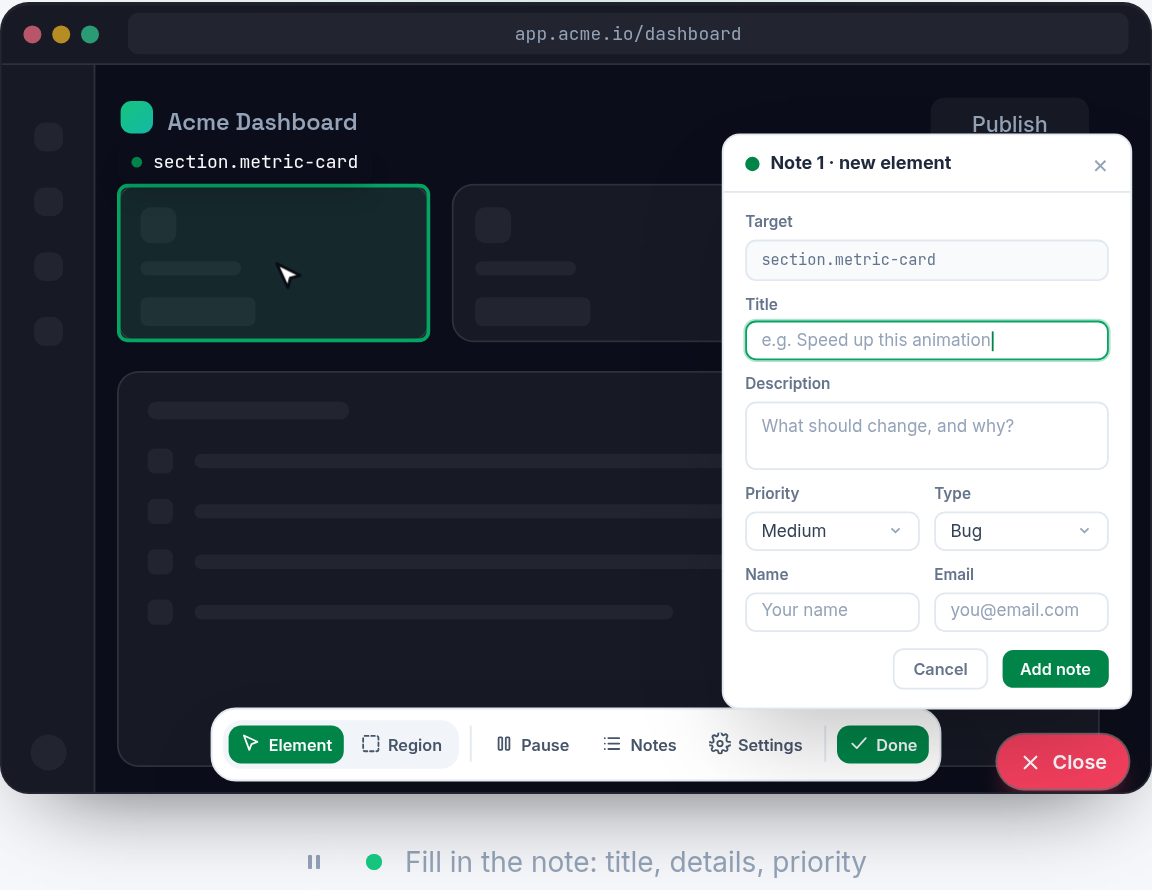
From feedback to a buildable developer task
A good issue is not just a complaint. It should be specific enough for a developer or coding agent to start work without translating a long conversation into technical steps. Vynix helps close that gap by turning page feedback into developer-context.
After the capture, you can copy a ready-to-build prompt. That prompt can include the relevant page context and the likely root cause, so it is easier to hand to an AI coding tool or use as the first draft of an implementation task. You can also open a GitHub issue from the feedback and assign it to a coding agent.
This matters because a lot of engineering time is lost before coding starts. The hard part is often not fixing a class name, handling an error state, or adjusting a request. The hard part is finding out what broke, where it broke, and what evidence proves it.
- Use Vynix when feedback needs to move from a browser session into an engineering queue.
- Copy the ready-to-build prompt when you want to hand the issue to an AI coding workflow.
- Open a GitHub issue when the bug should be tracked with the rest of the team's work.
- Assign to a coding agent when the task is clear enough for automated implementation help.
A concrete example: the checkout button does nothing
Imagine a tester is reviewing a checkout page and clicks Place order. Nothing happens. Without Vynix, the report might say, Place order is broken. A developer then has to ask whether the form was valid, whether the click handler fired, whether the order API failed, or whether the page blocked submission because of a hidden validation error.
With Vynix, the tester clicks the Place order button and submits feedback from that element. The screenshot shows the filled checkout form. The selected element points to the exact button. The console context may show a TypeError thrown by the click handler. The network context may show that no order request was sent, or that a request returned an error. The AI diagnosis can then suggest a likely root cause, such as a client-side exception preventing the submit flow.
That does not magically fix the bug, but it removes guesswork. The developer can start by checking the handler attached to that button, the form state used by the handler, and the error shown in the console. If the work goes to a coding agent, the prompt can include the evidence that explains why the button is the right place to start.
Where point and click feedback fits in a team workflow
Vynix is useful anywhere a web page is being reviewed: local development, staging, internal QA, product review, design review, or a shared preview environment. The important thing is that the feedback happens on the page, at the moment the issue is visible.
It also helps different roles communicate without forcing everyone to speak like a front-end engineer. A designer can point to spacing that looks wrong. A product manager can point to copy that does not match the expected state. A QA tester can point to a failed interaction. The developer still receives technical context, because Vynix captures the browser evidence behind the report.
This works best when the team agrees on a simple habit: if the issue is visible in the browser, report it from the browser. That keeps the visual state, technical context, and work item connected.
- Design review: point to a component with incorrect spacing, alignment, or copy.
- QA testing: capture a failed interaction with console and network context attached.
- Product review: turn page comments into GitHub issues instead of scattered chat messages.
- Agent workflows: provide a coding agent with a prompt grounded in the actual page state.
How to write better web feedback with Vynix
Even with automatic capture, a little human detail still helps. The best reports combine the clicked element and captured context with one or two sentences about what the reviewer expected. For example: I expected the confirmation modal to open after clicking Save, but the page stayed the same. That gives the developer both the behavior and the intent.
Try to report the issue while the page is still in the broken state. If a menu is open, leave it open. If an error appears after a request, create the feedback before refreshing. If the problem depends on a certain form value, keep that value on the screen when you click the element. The screenshot and browser context are most useful when they reflect the real failure.
It is also worth choosing the most specific element. If a card contains a broken Edit link, click the Edit link, not the whole page. If a table row has the wrong status badge, click the badge. Specific clicks lead to more focused reports, and focused reports are easier to turn into small, buildable fixes.
- Say what you expected to happen and what happened instead.
- Capture the feedback before refreshing or navigating away.
- Click the smallest relevant element, not just the nearest container.
- Use the GitHub issue option when the fix should be tracked in the normal backlog.
- Use the prompt option when the next step is to start an AI-assisted coding task.
- Vynix turns a click on a broken part of a page into feedback with the element, screenshot, console context, network context, and AI diagnosis attached.
- The captured context reduces back and forth because developers can see both the visual problem and the browser evidence from the same moment.
- Feedback can become a ready-to-build prompt or a GitHub issue that can be assigned to a coding agent.
Frequently asked questions
Does Vynix replace bug tracking?
No. Vynix helps create better bug reports from the page itself. You can open a GitHub issue from the captured feedback when the work needs to be tracked with the rest of your engineering tasks.
What does the AI diagnosis do?
The AI diagnosis gives a likely root cause based on the captured element, screenshot, console context, and network context. It is meant to speed up investigation, not to replace a developer's review.
Who should use point and click feedback?
Anyone reviewing a web page can use it: developers, QA testers, designers, product managers, or stakeholders. They can point to the problem, while Vynix collects the technical context developers need.
Install the widget with one script tag, point at a bug, and hand the fix to your coding agent.
Get started free