The Context an AI Agent Needs to Fix a Front-End Bug
AI coding agents can fix front-end bugs, but only when the bug report gives them enough context to make the right change. A screenshot and a sentence like "the button is broken" usually sends the agent guessing, and guessing is where bad patches come from.

- A front-end bug is usually not just visual
- Start with the exact element and page state
- Console logs turn symptoms into clues
- Network context explains broken data flows
- Screenshots are useful, but only with runtime evidence
- Turn bug context into a prompt an agent can build from
- How Vynix captures this context at the source
A front-end bug is usually not just visual
When someone reports a front-end bug, the visible problem is often only the last symptom in a longer chain. A checkout button might look disabled because a CSS class was applied incorrectly. A modal might fail to open because a click handler threw an error. A table might show stale data because a network request returned a 401 and the UI fell back to cached state.
This is why AI agents need more than a description of what a user saw. They need enough runtime evidence to connect the visible issue to the code path that produced it. The agent needs to know what element was clicked, what the DOM looked like, what the browser logged, which requests fired, and what changed right before the failure.
A useful bug report narrows the search space. Instead of asking an agent to inspect the whole app, you are pointing it at one element, one page state, and one set of runtime signals. That is the difference between "fix the dashboard" and "the export button in the billing table calls the API, receives a 500, then leaves the loading spinner active forever."
Start with the exact element and page state
The first piece of context is the target element. Not "the button near the top", but the actual button, input, link, card, dropdown, or table row that behaved incorrectly. For a human developer, this detail is obvious when they can inspect the page. For an AI agent, it needs to be captured and included.
Element context should include what the user interacted with and what the browser knew about that element at the time. That might include the text content, attributes, selected classes, ARIA labels, disabled state, and nearby parent structure. These details help an agent map the bug report back to components in the codebase.
Page state matters just as much. Many front-end bugs only appear after a filter is applied, a tab is selected, a user has a certain role, or an async request finishes. If the agent does not know the state, it may write a fix for the initial render instead of the failing path.
- Capture the clicked or highlighted element, not just the page URL.
- Include visible text, relevant attributes, and component-like structure when available.
- Describe the state that made the bug appear, such as selected filters, active tab, logged-in role, or form values.
- Note what you expected to happen and what actually happened.
Console logs turn symptoms into clues
Console output is one of the fastest ways to move from a vague UI issue to a likely cause. A TypeError, a failed import, a hydration warning, or an unhandled promise rejection can explain why a component stopped rendering or why an event handler did not complete.
The important part is capturing console context at the moment the bug is reported. If someone files a ticket later with a pasted screenshot, the console is usually gone. Even if the developer can reproduce the issue, they may not see the same browser state, feature flag, user data, or timing condition.
AI agents can use console logs to identify both the failing code path and the class of fix. For example, "Cannot read properties of undefined" near a component render points toward missing guards or an unexpected API shape. A React key warning may explain a list update bug. A CSP error may point away from component code and toward configuration.
- Include errors, warnings, and stack traces.
- Keep logs close to the time of the interaction, not a cleaned-up later reproduction.
- Do not remove "noisy" warnings too early, because a warning can explain a rendering edge case.
- Pair console output with the selected element so the agent knows which UI path was active.
Network context explains broken data flows
A large share of front-end bugs are really data flow bugs. The UI is waiting for a response, rendering an unexpected payload, swallowing an error, or showing old data after a mutation. Without network context, an AI agent may fix the wrong layer.
Network context does not mean dumping sensitive payloads into every issue. It means providing the useful shape of the request and response. The route, method, status code, timing, and error message often tell the story. If the UI posts to /api/invoices/export and receives a 403, the fix might involve permission handling, disabled state, or error copy. If it receives a 200 with an empty array, the problem may be query params or response parsing.
This context is especially useful for agents because it helps them avoid cosmetic fixes. If a spinner never stops because an API call fails and the catch block does not clear loading state, the correct fix is not to hide the spinner with CSS. It is to handle the rejected request and show a useful error state.
- Request URL or route pattern, with sensitive values removed when needed.
- HTTP method and status code.
- Response shape or error message when safe to share.
- Timing, retries, redirects, or cancellations that affect UI state.
- The UI state before and after the request.
Screenshots are useful, but only with runtime evidence
Screenshots are still important. They show layout, spacing, overflow, wrong text, broken icons, and visual states that logs cannot describe. A screenshot also helps an AI agent understand user impact. "The label overlaps the input" is clearer when the screenshot shows the exact viewport, font size, and surrounding layout.
But a screenshot by itself is weak context. It does not show whether a class was missing, whether a media query matched, whether data loaded, or whether an exception stopped rendering. Treat the screenshot as the visual anchor, then attach the technical evidence around it.
For example, a screenshot of a blank panel could mean many things. The component could have crashed. The request could have returned no items. A feature flag could be off. A parent container could have height 0. The right logs and network events tell the agent which branch to investigate.
Turn bug context into a prompt an agent can build from
Once the evidence is captured, the next step is packaging it into a task the agent can act on. A good agent prompt is specific, bounded, and testable. It should say what is broken, where it happens, what evidence was captured, and what a correct fix should preserve.
A weak prompt says, "Fix the search page bug." A better prompt says, "On the customers page, clicking the clear filters button clears the visible inputs but the table still uses the old query. The selected button element is Clear filters. Console has no errors. Network shows GET /api/customers still includes status=active after the click. Update the state handling so the request uses the cleared filters and add or update a test for this behavior."
That kind of prompt gives the agent a path through the code. It can search for the clear filters handler, inspect how query params are built, adjust state updates, and add a regression test. It also gives a human reviewer a clear way to judge whether the patch addresses the original issue.
- Name the page or route where the bug happens.
- Identify the exact element involved.
- Summarize expected behavior and actual behavior.
- Include console and network evidence.
- State the likely area to inspect without forcing a guessed solution.
- Ask for a test or a clear verification step when appropriate.
How Vynix captures this context at the source
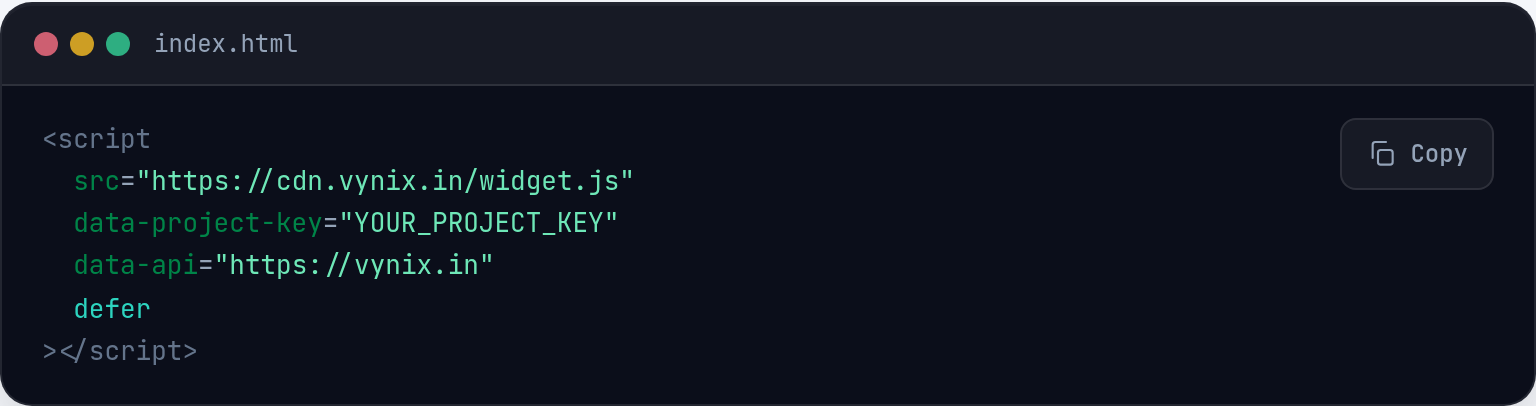
Vynix is built around a simple idea: the best time to capture front-end bug context is while the bug is visible in the browser. You drop a lightweight widget on a site, click on what is wrong, and Vynix captures the selected element, a screenshot, console context, network context, and an AI diagnosis of the likely root cause.
That matters because it removes a lot of back-and-forth from bug reporting. The person reporting the issue does not need to know which logs are useful or how to describe the DOM. The developer or agent does not need to ask for another screenshot, a console paste, or the exact button that was clicked.
From there, Vynix helps move the captured context into the development workflow. You can copy a ready-to-build prompt or open a GitHub issue and assign it to a coding agent. The agent still needs to inspect the code and make the change, but it starts with browser evidence instead of a vague ticket.
- AI agents need runtime context, not just a short description, to fix front-end bugs reliably.
- Element details, screenshots, console logs, and network activity help connect the visible symptom to the likely code path.
- Vynix captures that context in the browser and turns it into a prompt or GitHub issue a coding agent can act on.
Frequently asked questions
Can an AI agent fix a front-end bug from a screenshot alone?
Sometimes, if the issue is purely visual and simple. For most real bugs, a screenshot is not enough. The agent also needs the selected element, page state, console output, and network context to understand why the UI ended up in that state.
What is the most important context to include in a front-end bug report?
The exact element involved and the runtime evidence around it. If you can include the element, expected versus actual behavior, console logs, network requests, and a screenshot, the agent has a much better chance of making a focused fix.
Does Vynix write the code fix automatically?
Vynix captures the browser context, provides an AI diagnosis of the likely root cause, and lets you copy a ready-to-build prompt or open a GitHub issue and assign it to a coding agent. The coding agent or developer still applies and reviews the code change.
Install the widget with one script tag, point at a bug, and hand the fix to your coding agent.
Get started free