Using the Vynix MCP Server With Your AI Agent
A good AI coding agent is only as useful as the context you give it. Vynix helps turn a vague website bug into a specific, buildable task by capturing the broken element, a screenshot, browser console output, network context, and an AI diagnosis.

Why MCP matters for website bugs
The Model Context Protocol, usually called MCP, gives AI agents a standard way to read context from external tools. Instead of copying notes from a bug report, pasting screenshots into chat, and hoping the agent asks the right follow-up questions, you can expose structured context through an MCP server. For website work, that context is often the difference between a useful patch and a confident guess.
Website bugs are rarely described well on the first try. A report like "the checkout button is broken" leaves out the selected element, route, browser state, console errors, failed API calls, and visible UI state. Vynix is built for that gap. Someone clicks the exact thing that is wrong, and Vynix records the page evidence around it. When your AI agent can read that evidence through the Vynix MCP server, it can start from the same facts a developer would want before opening the codebase.
- The agent can see which UI element was selected, rather than guessing from a written description.
- The screenshot gives visual context, including layout, text, and nearby components.
- Console and network context can point to client-side errors, failed requests, status codes, or missing data.
- The Vynix diagnosis can help the agent form an initial theory, while still checking the code before making changes.
What Vynix sends to the agent
Vynix starts on the website, not in the issue tracker. You drop a lightweight widget on the site, reproduce the problem, click the affected area, and submit the annotation. That click gives the report an anchor. Instead of a generic bug title, the agent gets a focused record tied to a real DOM element and a real page state.
The useful part is not any single artifact. It is the bundle. A screenshot may show that a modal is hidden behind a header, but the console may show a JavaScript exception thrown during rendering. A network request may show that the UI is fine, but the data endpoint returned a 500. The clicked element may identify the component that owns the interaction. When these pieces arrive together, the agent has a much better starting point.
- Element context: the selected part of the page that the reporter clicked.
- Screenshot: the visible state of the page at the time of the report.
- Console context: browser errors, warnings, and logs captured around the issue.
- Network context: relevant request and response information captured from the page session.
- AI diagnosis: Vynix's likely root cause summary, meant to guide investigation rather than replace it.
- Task output: a ready-to-build prompt or a GitHub issue that can be assigned to a coding agent.
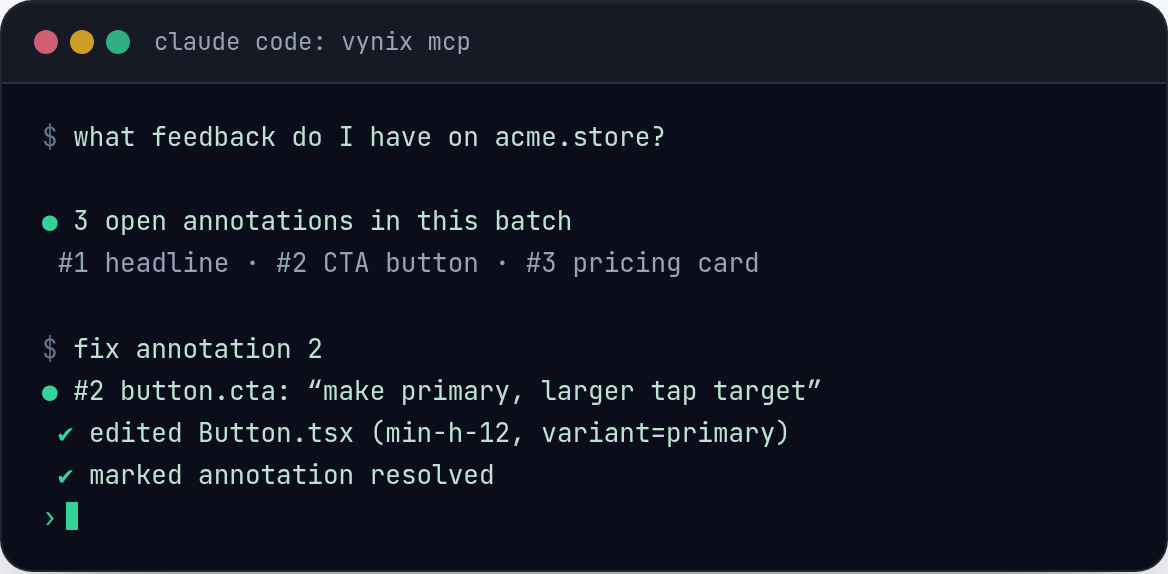
Set up the connection in a practical way
The exact setup depends on the AI agent and MCP client you use, so keep the configuration tied to your team's current tooling. In most setups, you add the Vynix MCP server as a context source, provide the required access details from Vynix, and restart or refresh the agent so it can list the available tools. Do not paste long-lived secrets into shared prompts or commit MCP configuration with private tokens into your repository.
Before giving the agent write access to your codebase, test the read path. Create a small Vynix annotation on a non-critical page, then ask the agent to summarize what Vynix captured. The agent should be able to identify the clicked area, describe the screenshot, mention any relevant console or network context, and restate the diagnosis. If it cannot do that, fix the MCP connection before asking it to edit code.
- Start with read-only review of Vynix context, then move to code changes once the agent is pulling the right data.
- Use a test annotation so you know what the agent should find.
- Keep authentication details in the place your MCP client expects, not in chat messages.
- Check that the agent can reference a specific annotation or issue before asking for a patch.
- Prefer small, scoped tasks at first, such as fixing one broken interaction or one failed route.
A realistic workflow from annotation to patch
Imagine a user reports that the "Apply discount" button on a checkout page appears to do nothing. Without Vynix, the task might become a Slack thread with a screenshot, a browser name, and a few guesses. With Vynix, the reporter opens the widget, clicks the button, and submits the annotation while the problem is still on screen.
The annotation might include a screenshot showing the checkout form, the clicked button, a console error such as a failed property read, and a network request returning a validation response the UI never renders. Vynix also adds an AI diagnosis of the likely root cause. From there, you can copy a ready-to-build prompt or open a GitHub issue and assign it to a coding agent.
When the agent reads the Vynix context through MCP, your prompt can be short and direct: "Use the Vynix annotation linked to this issue. Find the component responsible for the clicked discount button, confirm the root cause against the console and network context, and propose the smallest safe fix." That is better than pasting a long bug story because the agent can inspect structured evidence instead of relying only on your summary.
How to prompt the agent once Vynix context is available
Even with rich context, the prompt still matters. The agent should not blindly implement the first theory it sees. Treat the Vynix diagnosis as a lead. Ask the agent to compare it with the code, explain what it found, and then make the smallest change that addresses the observed behavior.
Good prompts are specific about the desired output. If you want a patch, say so. If you want an investigation first, say that. If the issue touches payment, authentication, permissions, or customer data, ask for a plan before edits. The goal is to make the agent use Vynix as evidence, then use the repository as the source of truth.
- For investigation: "Read the Vynix annotation, summarize the selected element, screenshot, console context, and network context, then list the most likely files to inspect."
- For a fix: "Use the Vynix context to reproduce the likely failure path in code, make the smallest safe change, and include a brief explanation of why it fixes the reported behavior."
- For tests: "Based on the Vynix annotation, add or update a test that would fail before this fix and pass after it."
- For review: "Compare the proposed change with the Vynix diagnosis and call out any assumptions that are not proven by the captured context."
Keep humans in the loop where it counts
Vynix can give an AI agent the context that is usually missing from a website bug report, but it should not remove review. The agent may correctly identify a client-side error and still choose a fix that does not match your architecture. It may see a failed API request and assume the frontend is wrong when the backend contract changed. Captured context narrows the search, but code review and product judgment still matter.
A useful team pattern is to let the agent draft the first patch, then require a developer to review the reasoning against the Vynix evidence. Did the change address the clicked element? Did it explain the console error or network response? Did it add a test or at least describe how the fix was verified? Those questions keep the workflow grounded.
This is also where GitHub issues help. A Vynix-generated issue gives the agent a place to work and gives the team a record to review. The issue can carry the annotation context, the agent can submit a proposed change, and a developer can decide whether the patch is right.
Common mistakes to avoid
The most common mistake is treating the MCP connection as magic. If the annotation is vague, stale, or created on the wrong page state, the agent will inherit that confusion. Encourage reporters to click the actual broken element while the bug is visible, not after navigating away or refreshing into a different state.
Another mistake is asking the agent for a broad rewrite when the Vynix report points to a narrow failure. If the captured network context shows one failed request, start there. If the clicked element maps to a single component, inspect that component before changing shared UI primitives. Small fixes are easier to review and easier to connect back to the original annotation.
- Do not ask the agent to fix "the page" when Vynix captured a specific button, form, or component.
- Do not ignore console and network context just because the screenshot looks obvious.
- Do not skip verification. Ask how the fix addresses the captured evidence.
- Do not expose private tokens or sensitive data in prompts, repository files, or public issues.
- Do not let the AI diagnosis override what the code and runtime evidence show.
- Vynix turns a website bug into agent-ready context by capturing the selected element, screenshot, console output, network context, and a likely root cause diagnosis.
- The Vynix MCP server helps an AI agent access that context directly, so prompts can be shorter and fixes can be tied to real page evidence.
- Use the agent for focused investigation and small patches, but keep human review in place for architecture, security, and product judgment.
Frequently asked questions
What does the Vynix MCP server add compared with a normal bug report?
It lets an AI agent read structured context from a Vynix annotation, including the clicked element, screenshot, console context, network context, and Vynix's AI diagnosis. That gives the agent concrete evidence instead of only a written description.
Can Vynix open a GitHub issue for an agent to work on?
Yes. From a Vynix annotation, you can copy a ready-to-build prompt or open a GitHub issue and assign it to a coding agent. The issue gives the task a trackable place in your normal development workflow.
Should the agent trust the Vynix diagnosis automatically?
No. The diagnosis is useful as a starting point, but the agent should confirm it against the captured console and network context and then against the codebase. A developer should still review the final change.
Install the widget with one script tag, point at a bug, and hand the fix to your coding agent.
Get started free